Create a report and email results
Go to www.tracecloud.com and create an account.
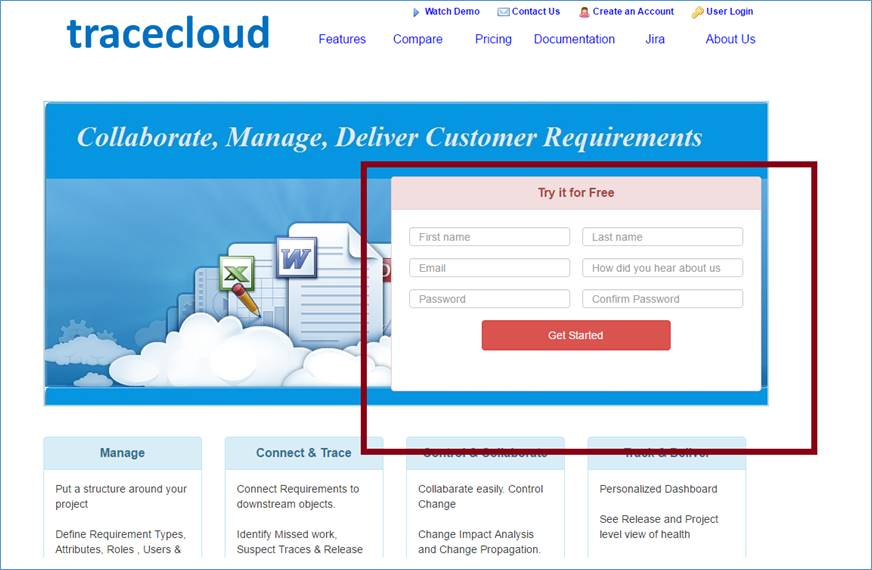
Login to TraceCloud at the top right hand of the page.

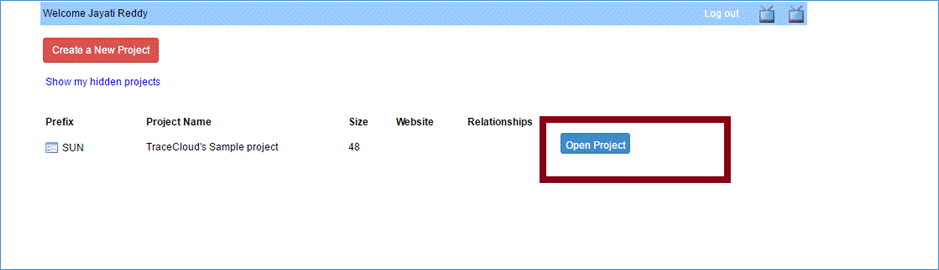
Open your project
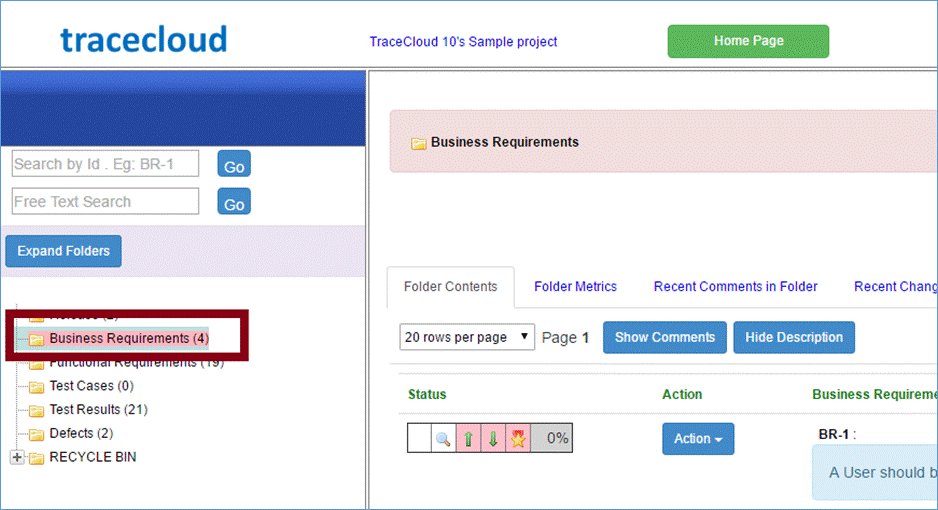
Click on a folder. For this example, we’ll use Business Requirements.
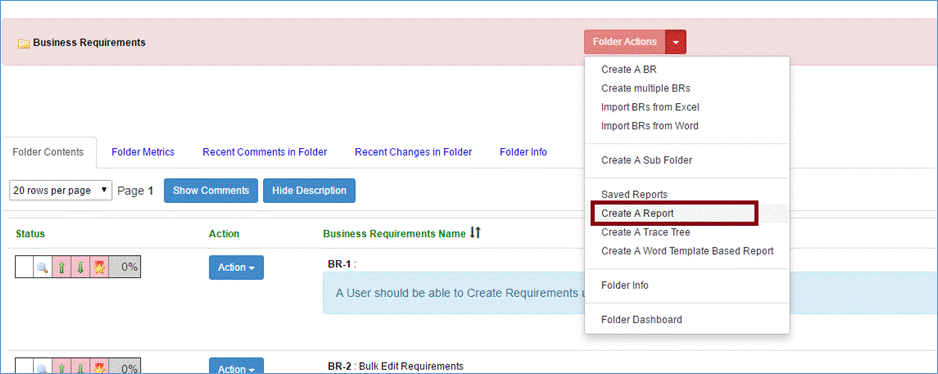
First click on “Folder Actions” and then “Create a Report.”
When applying filters, it’s always good to include sub-folders in the report.
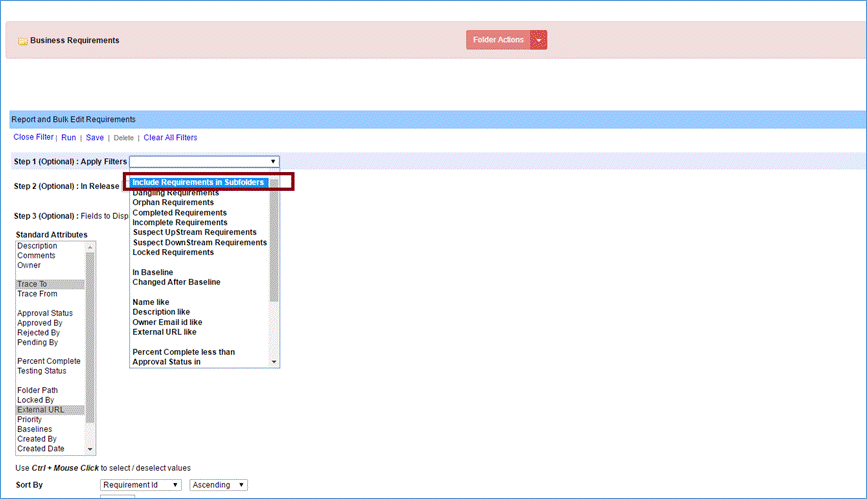
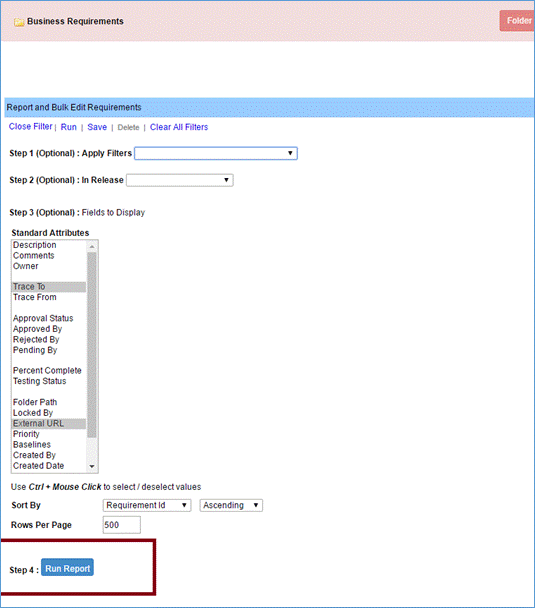
After completing your filter selection criteria (Step1), attributes to display (Step2), sorting and page size preferences, hit “Run Report” at the bottom of the page.
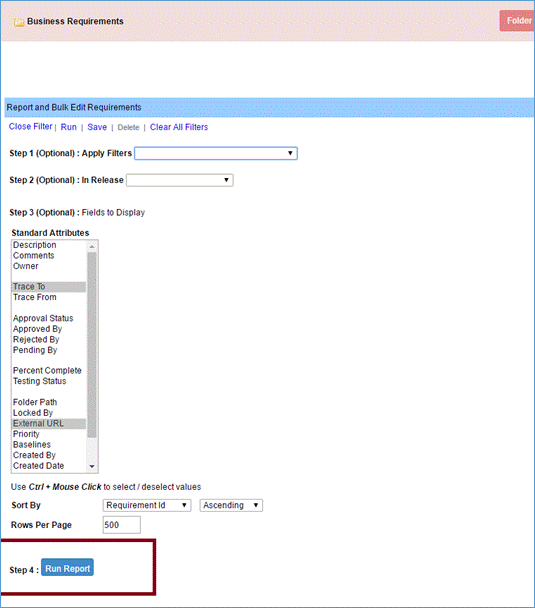
To change the report requirements, click “Modify Report” and hit “Run Report.”
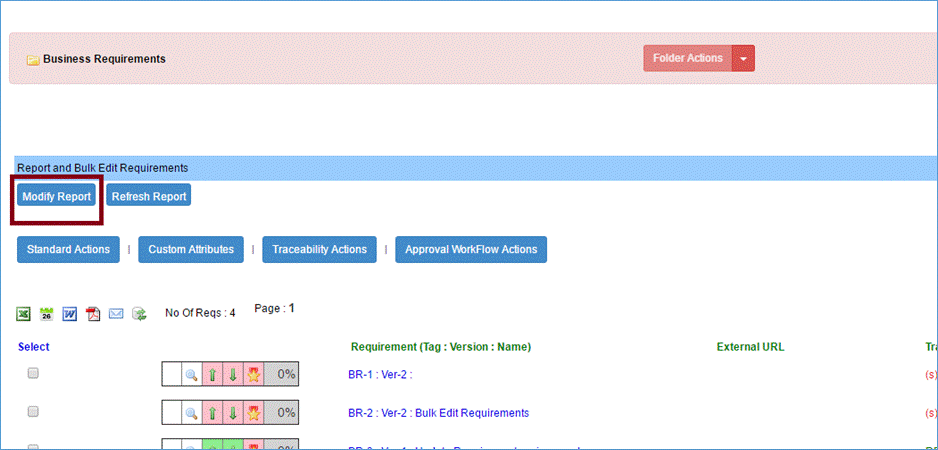
You can also save a report as an excel file.
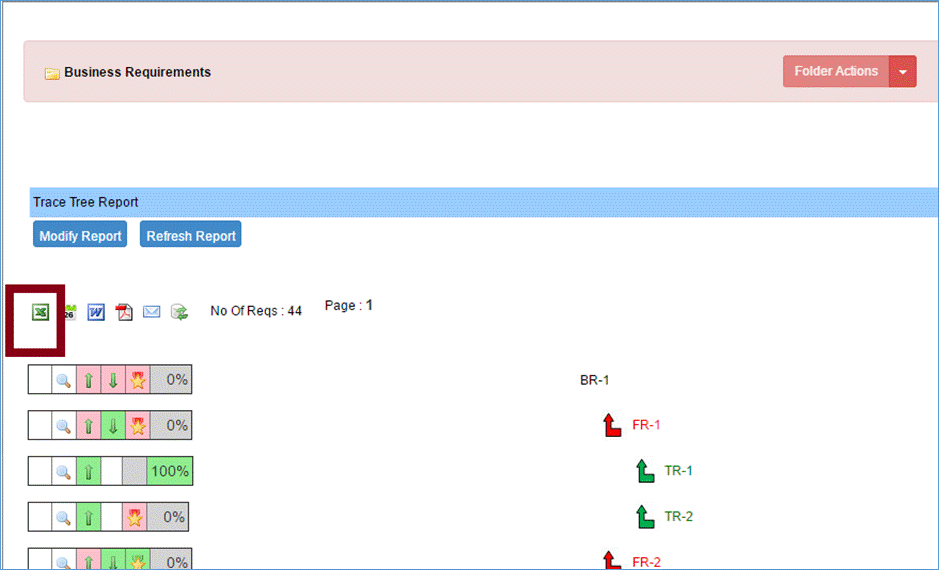
Alternatively, you can click on the email icon (In the picture above) to email it out directly.

All reports can be saved. After you run the report, click on ‘Modify Report’ button and that’ll show you an option to save the report.
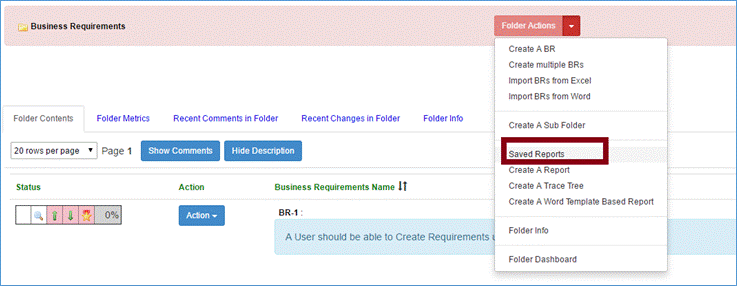
After you save a report, you can view it by clicking on the green ‘Home Page’ button, going to Report’s drop down and selecting ‘Saved Reports’.